News
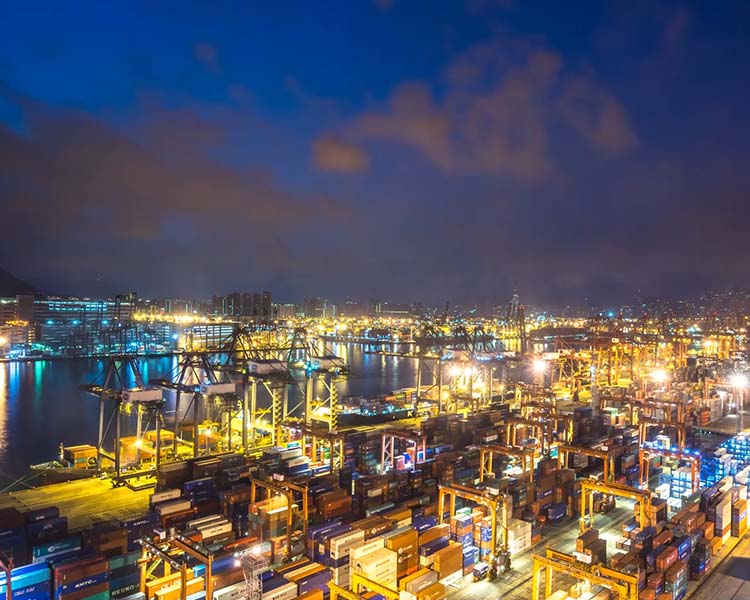
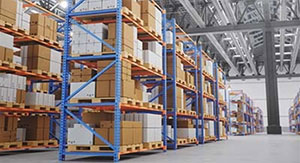
With our knowledge and experience in warehouse management and operation at the core, Mitsubishi Logistics will enhance all the logistics functions around the world and propose the latest and most advanced logistics.


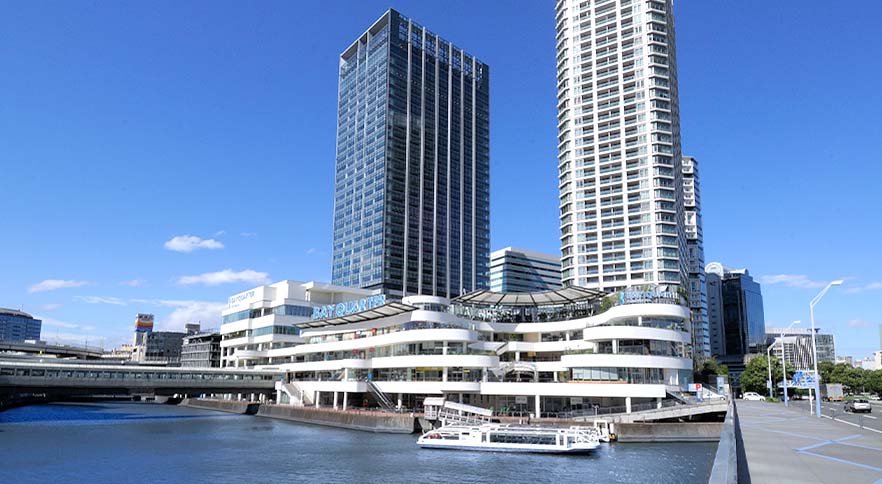
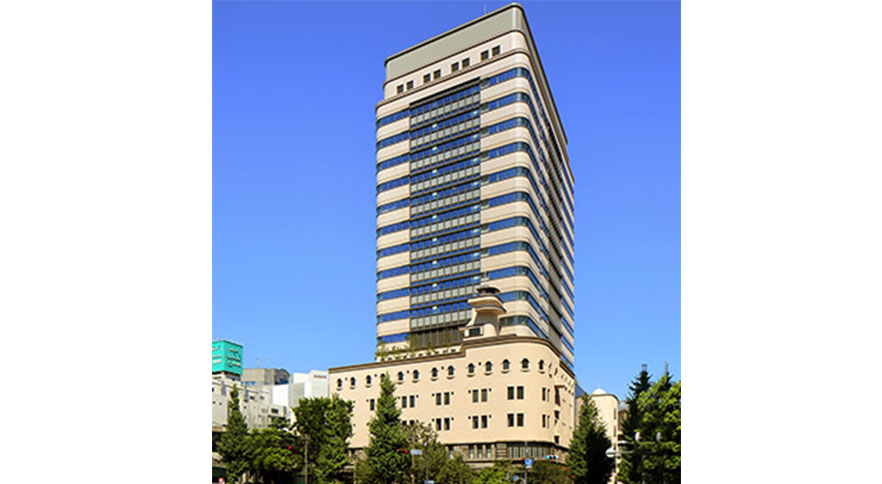
Mitsubishi Logistics leases real estate facilities (offices, commercial facilities, and residences) in six major cities: Tokyo, Yokohama, Nagoya, Osaka, Kobe, and Fukuoka.

About Mitsubishi Logistics
ABOUT US
Through our logistics and real estate businesses, we support people's affluent lives.
Founded
0years ago
Operating revenues
0billion yen
Global logistics-related bases
0locations
INVESTORS
"Contributing to the improvement of customer's value", we offer comprehensive logistics solutions to the management of customer's supply chains, from procurement to distribution/sales, as their partner.
Stock price
information
information
----yen
±-yen
(±-%)
Tokyo Stock Exchange ----年--月--日(-) --:--
News